Importing models
Models live within projects. Select or create a project for the new model first.
Write permission to the project is required to import models.
Click the Import button:

Then specify a title for the model and select the units of the model file (normally metres), and select a model file to upload:
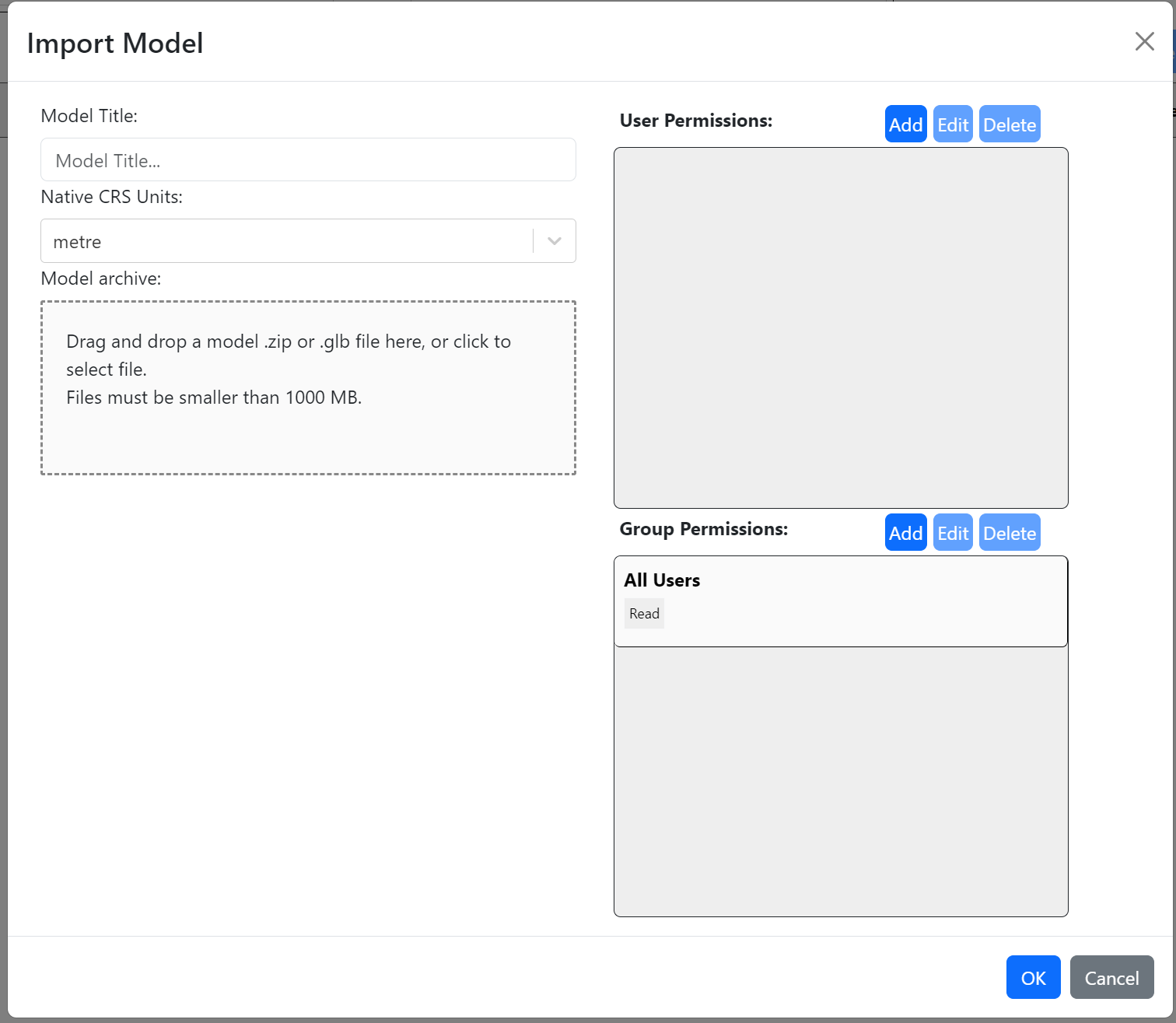
Model files can either be .glb (a common output format from mobile apps such as Polycam) or a zip file containing a single .fbx or .obj model file and all associated files.
Once the OK button is clicked, the model file will be uploaded. Don't close the browser window or navigate away until the upload is complete.
One uploaded the model is submitted to a queue for processing by the Reveal 4D system. At this point you can safely close the tab you uploaded from.
You will see a notification in the web and desktop apps if these are open when conversion is completed (or if it fails). You will also receive an email.
If there are problems with conversion of the model, the system will try to offer guidance in the notification email. If the cause of failure is unknown, the Reveal 4D team will be notified and will look into it.